 Hush
HushPrivate Spaces · iPhone
Your photos and videos, behind their own code.
A place for your own photos and videos, opened from Hush’s keypad with its own six-digit code. Start on your own — no second person is needed.


Free to download · Optional Plus subscription
Private Spaces are available on iPhone. On Android, check the current features and device compatibility in Google Play and the app.
See how to create and reopen a space ↓Start with your phone’s photo options
Compare the practical steps in hide photos on iPhone or hide photos on Android, then decide whether a separate Hush space fits your needs.
Create it. Add something. Find it again.
Your first useful action is saving a photo or video in your own space. There is no contact to connect first.
iPhone screens shown with sample content. The example code is for illustration; choose your own.
-
Step 1
Create a private space.
After setting up your Hush account, tap the + button at the top of the keypad screen and choose New private space. New accounts can also choose Create a private space at the end of the first-run walkthrough. Choose an optional name and a six-digit code, then tap Create space. Keep that code safe.
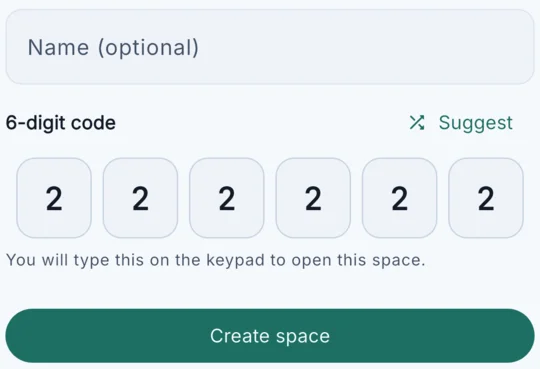
Actual creation controls: choose a code, then create the space. -
Step 2
Add a photo or video.
Inside your space, tap +. Choose Photos or videos to import supported media, or Take photo or video to capture something new. Wait for it to finish saving before closing the space.
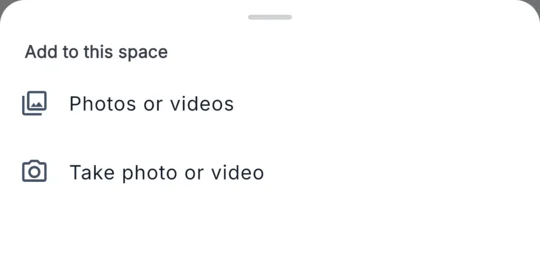
The + button opens choices for importing or capturing media. -
Step 3
Return to the keypad.
Tap the back arrow to close the space. You return to the keypad, without a list of your spaces on that screen. Each space has its own code.
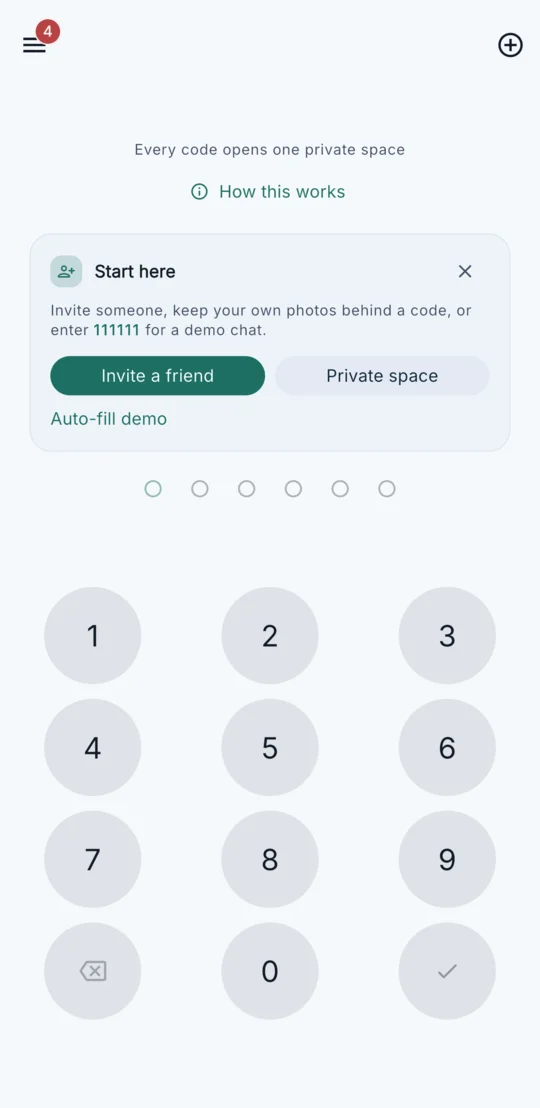
Closing a space returns you to the keypad. -
Step 4
Enter its code to open it again.
Type your space’s six-digit code on the keypad. That space opens, so you can view the photos and videos you saved. You do not need to invite anyone.
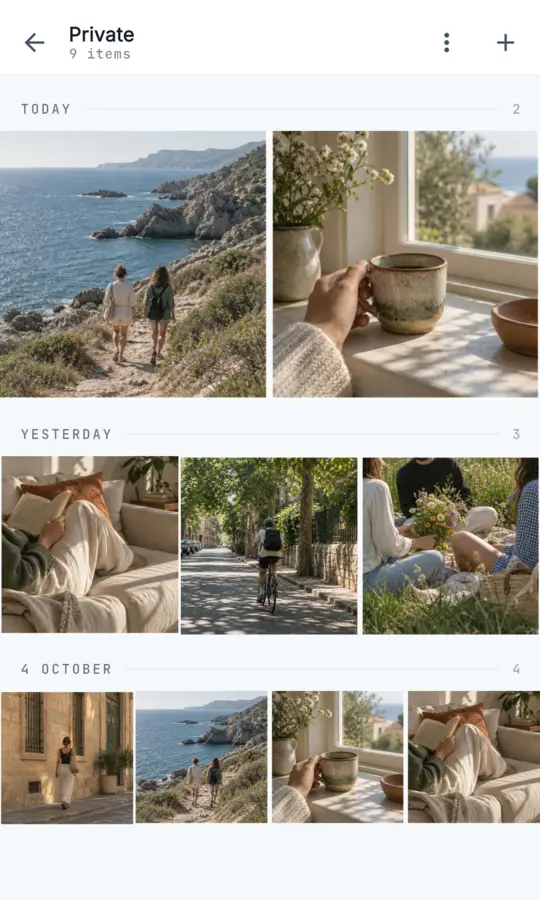
The matching code opens this private space again.
Importing makes a copy
Importing from Photos leaves the original in Photos. Hush does not remove it from your device’s photo library.
Start with Free. Choose Plus for more room.
Free includes limited space and sharing allowances; Plus increases them. See the current limits and prices in the app.
Free gets you started
Create a private space and save supported photos and videos within the free allowances. Opening your content with its own code is part of the free experience.
Plus increases your own storage allowances
Choose Plus when you need more spaces, more saved items across your spaces, or larger supported files. Your subscription applies to your personal storage; a chat partner’s Plus does not upgrade it.
Know what you are keeping — and what to keep safe.
Keep your code and account access safe
There is no in-app forgotten-code recovery. Losing a space’s code leaves its contents inaccessible through the app; it does not erase stored content.
The default signup creates an account without a phone number or email. Recovery after losing that anonymous account’s session is not guaranteed. Do not rely on reinstalling Hush or changing devices to restore access.
Code-based access, with backend storage
Hush uses backend services to store your photos, videos and access data. It is not end-to-end encrypted; the six-digit code controls access through the app.
Space items do not use the chat expiry timer. That does not promise permanent storage or a backup. Media can retain embedded metadata, and importing leaves the original in Photos.
Keep something just for you.
Download Hush, create a private space and save your first photo or video. Private Spaces are available on iPhone; check current Android features in Google Play and the app.
Start free · See current Plus prices in the app