 Hush
HushHow to Hide Photos on iPhone
You can keep selected photos out of the ordinary Photos view without installing another app. Start there, then decide whether your own separate-code space serves a different need.
Use Photos’ Hidden album first, then check its authentication and Show Hidden Album setting. Hiding affects your synced iCloud Photos library; it does not retract copies already shared elsewhere.
Start with the iPhone Hidden album
- Open Photos and hold the photo or video you want to hide.
- Choose Hide and confirm.
- To find it again, open Collections → Utilities → Hidden, choose View Album and authenticate.
- To conceal the album entry, open Settings → Apps → Photos and turn off Show Hidden Album. Turn it back on when you need the entry again.
Hidden media leaves ordinary Photos views; the album requires authentication by default on iOS 16 and later. With iCloud Photos, hiding also applies on your other synced devices. Apple documents the steps and version requirements.
What this changes, and what it leaves behind
Concealing the album entry is a visibility choice, not a separate code for each album. Check your Photos authentication settings and who knows your device passcode. A file you already sent or copied elsewhere is a separate item; hiding your copy does not retract it.
Try this with a harmless sample first: hide it, close Photos, reopen Hidden and check what an unlocked phone can access. If your goal is simply to remove photos from the main library view, the built-in option may be enough.
A separate-code option: Hush Private Spaces on iPhone
Private Spaces are advertised for iPhone. No second person is needed; create an account and choose a username before setting up your own space.
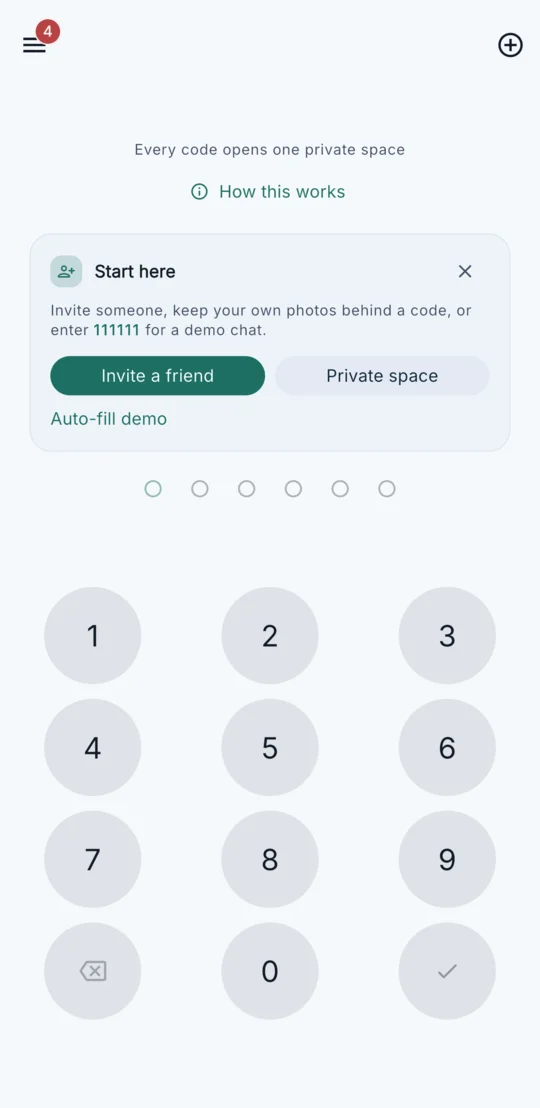
If you want different groups of your own photos opened by different codes, compare a Hush space with the device-linked Hidden album. The keypad home has no space list on that screen; other app and device surfaces can still reveal activity.
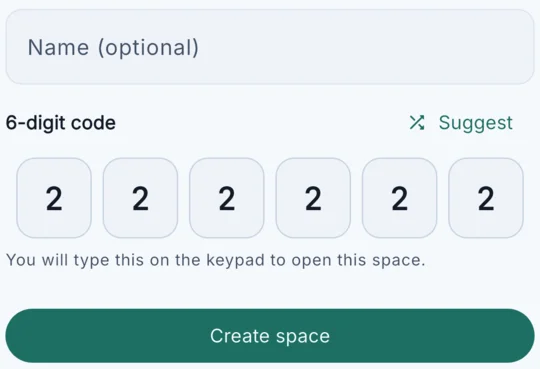
1. Create your space
After account setup, tap the + button at the top of the keypad screen, choose New private space and set a six-digit code. An optional name helps you recognize it after opening. Keep the code safe.
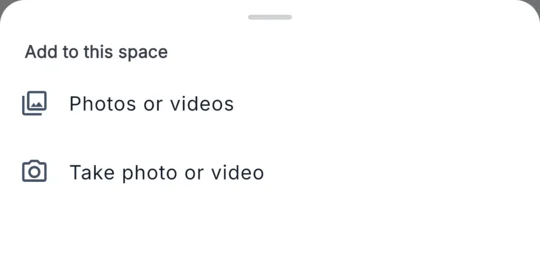
2. Add a photo or video
Inside the space, tap + and choose Photos or videos. Select a harmless sample and wait for it to appear. The import makes a copy: it leaves your original in Photos.
3. Close to the keypad
Use Back to leave the space. You return to the keypad rather than an album list on the home screen. This does not remove the original photo or every device record.
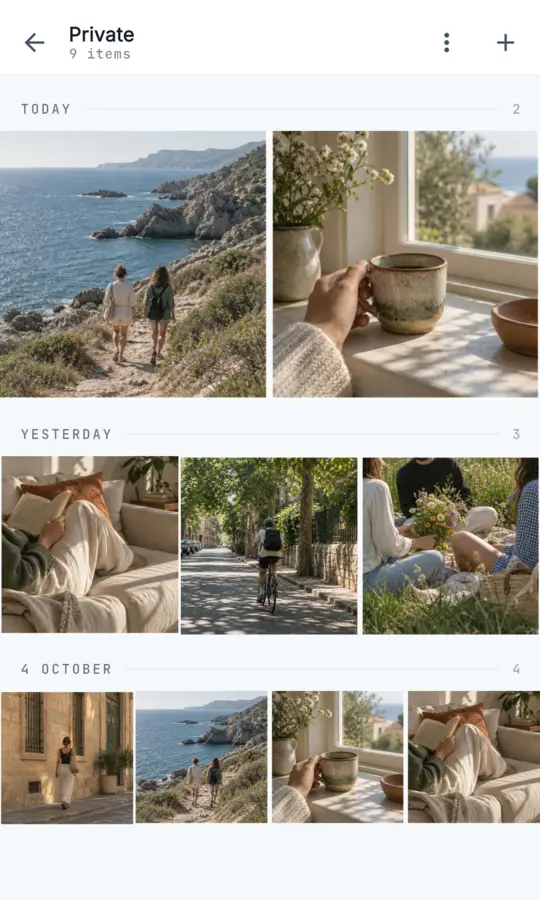
4. Reopen with that code
Enter the same space code on the keypad to open your space again. A different space has its own code; there is no master unlock or in-app forgotten-code recovery.
- Originals remain. Importing into Hush leaves the original in Photos. Photos and videos can retain embedded metadata, including location information.
- Recovery is limited. There is no in-app forgotten-code recovery. The default account has no implemented recovery route after session loss; do not assume reinstalling or changing devices restores it. Forgetting a code does not delete stored content.
- Backend storage. Hush stores photos, videos and access data using backend services. It is not end-to-end encrypted; six digits control access through the app, not encryption strength.
- Choose the right use. No second person is needed for your own space. Hush does not hide existing SMS or WhatsApp chats, and a discreet screen is not a promise of no device or app records.
Free includes limited personal storage; your own Plus subscription increases your Private Spaces allowances and supports larger files. A chat partner’s Plus does not upgrade your space. See current limits and prices in the app. Space items do not use the chat expiry timer; this is not a backup or permanent-retention guarantee.
Common questions
Does hiding remove the photo from iCloud?
Hiding is not deleting. Apple says hidden status applies on other devices using iCloud Photos. Separately stored or shared copies are outside that action.
Does importing into Hush remove the Photos original?
No. Hush imports a copy. Manage the original and any shared or backed-up copies separately.
Do I need someone else to install Hush?
No for your own Private Spaces on iPhone. Messaging together requires both people to use Hush.
Is a hidden folder a guarantee that nobody can discover it?
No. Check the documented lock, other copies, settings and device access. Hush’s requests, alerts, notifications and usage records can also reveal activity.
Sources and review
Official documentation reviewed 8 October 2026. Native steps vary by supported version and device. The Hush walkthrough uses the existing iPhone fixture evidence described above.

